
In the first of our long awaited series of tutorials, On Stage Lighting has a beginner’s guide to the MagicQ PC. A sightseeing tour rather than a how-to, this article looks at the interface and concepts of the Cham Sys lighting desk.
New: A pdf version of this guide is available for you to download and print – MagicQ Introduction PDF

A note about the MagicQ:
On Stage Lighting often recommends the use of the Cham Sys MagicQ PC to people looking for a cheap PC DMX lighting controller and apprentice programmers interested in moving light control training. Although I do have a passing connection with Cham Sys, my enthusiasm comes from the fact that I think that the MagicQ is a good lighting desk. The MagicQ PC software is also freely available, cheap to cheap to use with a DMX USB device and is a good desk to learn. Disclaimer over.
Although the user interface (UI) on PC can seem a bit at odds with genuine PC based lighting control, it’s a real lighting console that shares many concepts and workflows with other consoles. The Grand MA and Whole Hog III desks are, at the time of writing, popular moving light consoles. Learning the MagicQ is time well spent when want to learn these other desks.
Get The MagicQ PC Software
The PC version software is available from the Cham Sys website for PC , Mac and Linux.
You have to enter an email to get a download link but Cham Sys don’t send you endless newsletters or sell your email address to spammers.
To look around the different areas of the MagicQ PC sofware it’s a good idea to load up one of the demo shows available with the download. This gives you instant “stuff to look at” without having to patch up, record looks etc. If you don’t already have a demo show running, you can hit the SETUP button followed by the Load Show softkey at the top of the screen. Confirm the overwrite and select demo.shw Once the show has loaded, you can close the Setup window using the CLOSE hardbutton or get a different view by holding your PC Ctrl key and selecting a view button, such as Palettes, in the top right hand corner of the main screen.
Desk Playback

Let’s start with the playback side of the MagicQ, a pretty important part of any lighting console. Most large consoles provide a range of playback options to suit different shows and the MagicQ PC is no exception.
- The 10 Playback faders can hold cue stacks, chases, effects or be used as scene “submasters”. Each playback has a Go and Pause button and can be connected to the Main Go button, to enable theatre stack style playback. Raising the fader can also make the cue “GO”.
- The “S” button is used for storing and selecting on that playback and the 10 playbacks are expanded by using a familiar page system that holds playbacks over on changing pages.
- Playback outputting is organised in a number of ways : Tracking, Non-Tracking and Normal are some of the global options. Normal mode is a good starting point.
So, the faders can trigger moving lights, fade intensities or can be set to control speeds of chases and effects. The range of playback options available mean that you can choose how you record and play your show whether it’s a theatre play, a club or a concert. When first learning moving light control on MagicQ PC, it is good start with a simple system such as recording each look onto a playback fader or running a single cue stack.
Programming
The MagicQ uses a programmer based recording system. Values are entered into the programmer, over-riding current output values, and are dumped into their destination playback. The contents of the Programmer are wiped using the CLR button (hiding down on the right in the standard PC view) and a new look is built. For more information see our article on using programmer based controllers.
The Main Screen

The MagicQ desk uses a colour touchscreen with additional hardware buttons, patched to contextual softbutton control. The MagicQ PC screen replicates the touchscreen minus the hard buttons round the screen area. The large yellow squares around the edge provide softbuttons that change as you enter different screens. The screen layouts are customisable and provide the flexible interface for the console.
- The top softbuttons relate to the current window.
The bottom softbuttons show the names of scenes stored on the playback faders plus other Playback information. - The softbuttons on either side of the “screen” label the encoders (wheels) used for moving light control. They also provide toggles for encoder functions – for example the Dimmer wheel: it’s softbutton toggles 0%, 50% and Full. These softbuttons are divided by a tiny dash that splits the toggle into a Up/Down selector for multiple option lists.
- On the MagicQ PC, the encoders are marked by small semicircular icons around the main screen. These can be used to click the encoder values up and down but are the weakest point of the PC only interface. I’m surprised that Cham Sys haven’t implemented mouse scroll wheel control for the virtual encoders (well, I can’t get it to work on my current version of the MagicQ PC.)
- At the bottom of the main screen, there is a small line of desk information including the command line, a method of entering data common to some other lighting consoles. This displays programming and other data as you enter it, as well as giving you useful prompts on what to do next.
Hardware Buttons
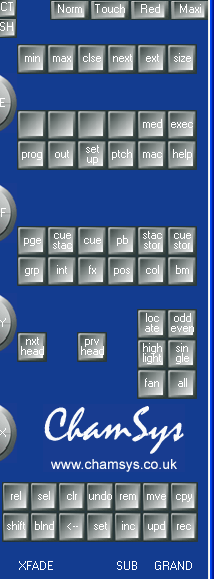
The hardware buttons on the MagicQ are grouped according to function. Here’s a quick tour around the button groups, starting at the top right.
- Norm, Touch, Red, Maxi – These buttons don’t exist on the real world console as they control the layout of the PC version. Normal looks most similar to the MagicQ100 with other layouts optimised for other uses including a tablet PC.
- Six buttons are provided to adjust the screen windows. Changing the size and position of different windows within the Main Screen, it is possible for the use to customise their programming environment. These can be saved for recall later – pressing CTRL on the PC turns the top screen softbuttons into selectors for the preset screen layouts such as Palettes, Output etc.
- The next group of 12 buttons bring up windows where you can view and change information such as Patch, Desk Setup etc.
- Up next we have 12 more window open buttons, these relate more closely to programming and can be used in command line syntax. For instance, hitting the Group button opens the group selection window while Group followed by 1 selects Group 1 ready for use.
- Prev Head, Next Head and the other buttons in this group relate to the selection of fixtures ready for control. Highlight and Locate plus other Odd/Even choices can be made here.
- The final group are mainly recording and management buttons, with a few other functions thrown in. The two most important are REC for dumping information from the programmer to a destination and CLR, which empties the programmer. The Clear button displays a small red LED square when there is information in the programmer.
Selection Grids

The MagicQ often displays selection grids on it’s main screen. These squares are softbuttons that hold the button label and can be used for selection. The grids display Fixtures, Groups, Palettes and other selectable stuff. Using MagicQ PC without a touchscreen, the mouse is used to click on the square.
Spreadsheets

Using spreadsheet style layouts to display information, the MagicQ also allows you to change data via the spreadsheet. Selecting mulitple fields and entering new values can help with patching, cue editing etc. and provides another powerful way of getting around.
Text Input

Changing values and labelling is an important part of console housekeeping. On MagicQ PC, these can be entered using the PC keyboard but a “virtual” QWERTY or numeric keypad will pop up for text entry. It’s worth knowing that some labelling jobs can be done quickly “on the fly” while storing Groups, Palettes and Memories. It’s also possible to adjust labels but pressing the SET hardbutton and selecting the window item to be changed.
While we are talking about the PC keyboard, there are different options to use keyboard shortcuts when using the MagicQ PC. There’s a tutorial coming up dedicated to these shortcuts.
The Intensity Window

The MagicQ has many similar windows that allow selection and adjustment. The exception, in looks at least, is the Intensity Window. Accessed using the INT hardbutton, the Intensity Window provides dimmer control of all patched fixtures and dimmers using virtual faders. On the PC you can use the mouse to select dimmer/fixture channels or fade them up and down using the sliders. With the Demo show loaded, you will notice that the intensity faders are also named and coloured up according to their gels – neat, huh?
Back on the Bus please,
So, we’ve had a nose around the main interface of the MagicQ PC. While you have got the demo show loaded up, it’s worth looking around the different screens and options and press a few buttons (let’s face it – this is how most of us learn new software, anyway) . Given a bit of a kick start from our tour, it should be fairly easy to find your way around . The next stage is learning how to use all these windows and softbuttons to create and run your show. Luckily, On Stage Lighting will be producing a whole series of tutorials on using the MagicQ with both the basics and more complex features. Don’t forget to make sure your receive our updates via RSS feed or email.
Take a look at the rest of our MagicQ and other tutorials here.
See you next time.
Rob Sayer HND PGDip FHEA is a Senior Lecturer in Technical Theatre Production, mentor, and consultant in stage lighting and education. As a professional lighting designer, Rob designed and programmed theatre performances, music festivals and large corporate events for blue chip companies while travelling all over Europe. With a background in theatre, he combines traditional stage lighting knowledge alongside fast moving lighting and video technology in the world of commercial events.
QUE TAL AMIGOS YO SOY NUEVO EN ESTO Y ESTOY TRATANDO DE APRENDER A MANEJAR LA MAGIC-Q Y ESTOY BUSCANDO EL MANUAL SI ALGUNO LO TIENE POR FAVOR ME LO PUEDE MANDAR O PONERLO AQUI GRACIAS ESTA MUY BUENA LA PAGINA Y LOS COMENTARIOS. UN ABRAZO
Why is this so hard to understand? I find this interface just ugly and looks like it belongs on my Spectrum ZX81.
Completely horrid!!
Congratulations for the work! Very good indeed!
I am here in Brazil and I am researching a lot about the system of MagicQ Chamsys.
His tutorials are helping me a lot!
I look forward to the next.
Hug and more …
Thiago Martins
Parabens pelo trabalho!! Muito bom mesmo!!!
Estou aqui no Brasil e estou pesquisando muito sobre o sistema MagicQ da Chamsys.
Seus tutoriais estão me ajudando muito!
Não vejo a hora do proximo.
Abraço e ate mais…
Thiago Martins
How do I create my own fixture personality file in a lighting desk and how to create a programming for stage lighting?