
MagicQ tutorial Part 1 takes it from the top. An anti-quick start guide, we take it slow so as not to miss the scenery.
PDFs: All three of the MagicQ conventional lighting control tutorials are available for download as an ebook (pdf), so you can print out and follow along.
Video Tutorials: There are also some additional videos on more advanced subjects in my Stage Lighting Control YouTube Playlist. I have a number of other beginners to be uploaded, so subscribe to the channel to get them.
If you can already use the MagicQ a bit, you should still read this tutorial as it is specially designed to show you the useful stuff that you might not find on your own and covers good workflow for all programming. If you have never really used a a Cham Sys console, this tutorial is going to work for you too.
You might like to take a look at Introduction to the MagicQ which takes a tour around the desk . This tutorial is intended to be easy to follow with only a version of the MQ PC/Mac software from Cham Sys (we are running 1.4.00 today) and a single screen PC/Laptop with keyboard and mouse. I tend to run MagicQ PC with the Norm. screen mode, as the button layout is closest to the actual console which is more familiar. If you intend to mainly work with a tablet laptop or touchscreen, you may want to run in Touch mode from the start – this doesn’t matter but some notes about the positioning of the buttons may not be accurate.
Notation: Hard buttons on the console are written in CAPS such as CLEAR, softbuttons (around the screen) have a capital letter such as New Show (top). Buttons sometimes have a rough location after them such as (top right) so you can find them. Hard buttons may also have the abbreviated version as it appears on the MagicQ button in CAPS afterward: RECORD [REC]. This information in this tutorial is as accurate as possible, but please bear in mind that (confession time) I have not spent a lot of time reading the user manual. One of the plus points of the MagicQ is that it uses many concepts available on other consoles so reading the manual is not a necessity for programmers with some experience.
What are we going to do?
So, we are going to light a 3 piece band with 36 ways of dimming, 36 Pars, some Source 4 specials and 4 blinders – a nice simple rig. We are going to visualise our progress onboard the MagicQ using a virtual plan and discover some pretty useful features along the way. Here’s the plan (PDF for printing):
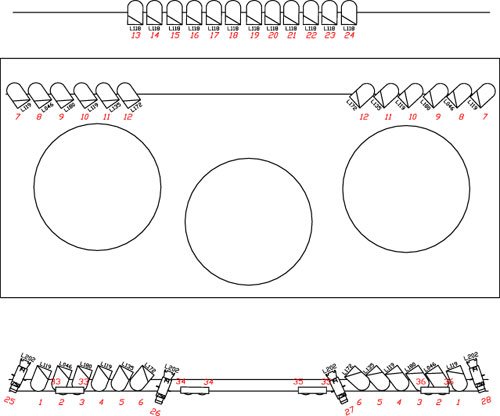
“Surely the MagicQ is a moving light console. Why aren’t we using any moving lights?”
Moving lights add a level of complexity to programming that we don’t need right now. Many of the functions of the MagicQ can be demonstrated with generic fixtures and only having to deal with one attribute (Intensity) gives us a clear head to get to grips with the desk. Conventional lighting also is simpler to visualise without a “virtual” rig using Capture or WYSWYG and having to worry about connecting up and patch a visualiser. We’ll run some shows that way in a future tutorial.
Start a New Show
Having downloaded and installed the MagicQ PC/Linux/Mac software from Cham Sys, run the program. I think the first time you do this, the help file loads but forget that for a minute and hit CLOSE [CLSE] (top right) and open SETUP. First, choose New Show (top softbuttons) and select Normal mode – don’t worry about the other modes at the moment. Agree to the popup about erasing existing show from the memory (for reference, this only removes the current show from the app – if you have saved a show, it doesn’t delete it from the store).
A note about Contextual Softbuttons: The buttons around the screen of the MagicQ are contextual, meaning that they change to show the tools you need at a given time. Confusion can strike when you can’t see the softbutton you expect. This is because the contexts are often derived from the “active” window. The active window is the one highlighted by a darkened colour strip along the top, where the window label is. Making a window active can be achieved by either clicking the top bar, clicking within the window or pressing the associated hard button such as GROUP. I have tried to remember to make sure that this tutorial tracks the active window but if you can’t see the right set of tools, check see if you have the correct screen live.
Check Output Devices
Before we can connect up real life kit to the desk, we need to define what the outputs actually do and as this is a low budget gig, we can imagine that we are going to use the Enttec Open DMX USB as an output. Not having a real DMX USB does not effect this tutorial but you need to remember to set outputs up on the MagicQ in the real world.
In SETUP, choose DMX I/O (top) and you will see a spreadsheet showing a DMX universe list. Double click on the Out Type field of DMX universe 1, and choose Open USB from the list. Make sure that the output is set to Enabled and we have DMX universe 1 firing down the dongle.
Window Colour Scheme:The images here show yellow and blue windows, rather than the MagicQ default grey ones. I prefer them and they make better screen shots. If you want to use the same colour scheme: while still in SETUP, you can hit View Settings and choose the Windows tab. Double clicking in the Colour Scheme field (Grey – default) and changing it to High Brightness does the trick. Close the SETUP window with CLOSE.
Patching the MagicQ
Before we can control anything, we need to patch up our dimmers on the MagicQ, so open the PATCH window and hit Choose Dimmer (top). In the command line (bottom right of touchscreen) it says Choose Dimmer >. Now we type in the number of dimmers @ which DMX address they start at. We are only using one DMX universe which is currently 1 so just type 37 @ 1 Enter and select Patch It from the popup.
To patch to a different universe such as DMX 3, you can type @ 3-1 but we only need one today. We can now see all our dimmers and their DMX addresses in a spreadsheet which can be navigated using the scroll bars or arrow keys. We can also Shift+select fields for multiple data edits like a normal spreadsheet application.
You might have noticed that we patched an extra dimmer by mistake – No 37. We can delete that now by hitting REMOVE [REM] and clicking in the row of dimmer 37, confirming the delete in the pop up. So that’s gone away. If we needed to make any changes, to addresses for example, that could be done easily via that spreadsheet in this window.
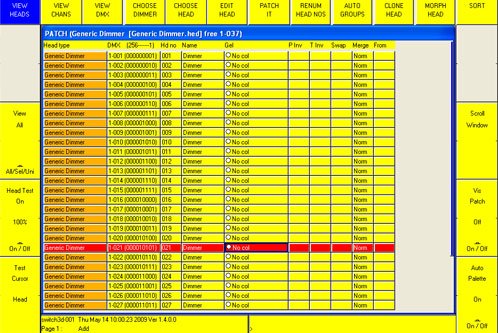
Now we have a patch, let’s save the show before we go any further. SETUP ->Save Show (top) and type in a name. The default location is the SHOW folder of the MagicQ installation and this is also where the auto backup files are stored.
Test the fixtures, Label and Colour up
Having patched our 36 dimmers on Universe 1 to the Open DMX,we ought to test the rig. Highlighting a field in the Dimmer 1 row, choose Head Test on (left) which takes the dimmer to 100% and makes the row turn red. Moving the arrow down the patch list tests each fixture. If you haven’t got a real rig in front you open the OUTPUT [OUT] window(top right) and see the current dimmer on at 100%. Not only does this flash out the rig, it also helps us to label up the fixtures and assign gel colours to them on the MagicQ. This is worth doing for reasons you will see in a minute.
Labelling
We know that our first 6 Dimmers are our FOH PARS, so let’s select all the Name fields of fixtures 1-6 using a Shift select. Watch the command line > as we type in “FOH Pars” and hit Enter. The Name fields all change to FOH Pars. Dimmers 7-12 are our “Mid Pars” so we can set that too along with Dimmers 13 – 24 which are “Beam Fans” In real life, we might need to check where our Source Four profiles and Blinders are so with Head Test still on, arrow down through the Name fields and label each one as they appear on stage. SL Spot, 2x DSC Spot, SR Spot with Blinders on dimmers 33 – 36.
The other dimmers are genuinely spare so it is good practice change their names from “Dimmer” to “Spare” in case you need to find spare channels later. Leaving the label set to Dimmer means that it might get lost among other dimmers that you just haven’t got around to naming. With a larger dimmer count, being able to find a label like “Spare” or “Spare Truss 1” quickly.
A note about naming: There is little to be gained from giving each dimmer a unique label and it takes too much time. Deciding on labels depends on your rig but it’s a good start to use the fixtures “job” group like Blinders or position such as FOH PARs.
Assigning a colour to each dimmer
Like labels, setting the gel colour of each of our channels helps us visualise the rig on the MagicQ for the tutorials but also really pays off when programming later on . Again, assigning colours can be done easily by scrolling down in Head Test mode and looking at the stage before typing in the gel number. At the Gel field of Dimmer 1 type in 119 and hit Enter. You will see that the field changes to L119 Dark Blue with a blue icon. If you need to enter a Rosco #gel just type R followed by the number. Neat, huh? Work down through the patch list setting each colour as per the plan. You can Shift-Select the Beam Fans before typing in 201 to set them in one go.

You can sort through the patch list by choosing Sort (top right) and choosing a filter such as By Gel or By Name. This is great for finding specific information about the patch of a particular fixture or finding all our Spare channels in a multiple complex multi universe rig. Also, try viewing the patch By Channel or By DMX and see the other options available for editing in those sheets like fader curve.
Exporting the patch
Now we have patch information with fixture labels and colours we can export the patch to a .csv file. If you are curious, open up the CSV in a spreadsheet application to see what it looks like. Being able to create a patch using a spreadsheet program and import it into the MagicQ is pretty handy, especially if you already use spreadsheets as part of your paperwork. In the PATCH window, select View Chans (top left) and then Export Heads (top right) and type in a name for the file. By default the file ends up in the MagicQ folder “Shows” (set within the SETUP window).
Creating auto groups
We spent time entering label and gel information, something that you might not have time to do everyday. The great thing about having this information is that the MagicQ can use these labels to create useful fixture selection groups automatically.
Still in the PATCH / View Heads window, select Auto Groups (top) and Dimmer Groups. This has created a series of selection groups based on our naming and gels which save us having to create from scratch. Let’s have a look at what has happened.
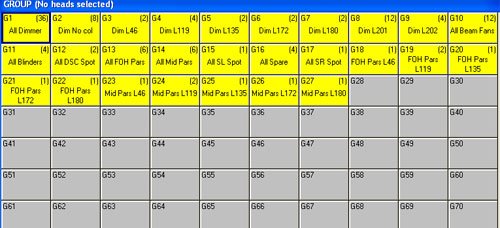
Open the GROUPS [GRP] window and you will see a lot of new groups. Some of these (like the colour washes such as Dim L119) are more useful than others so we are going to get rid of some. Most groups with only 1 fixture in are not that useful apart from the SL and SR Spots so let’s quickly delete groups like Mid Pars L172 and FOH Pars L180 etc. Shift and Arrow keys highlight multiple groups before you hit REMOVE [REM] and confirm.
Now we might want to tidy the GROUPS window up a bit. Later on we are going to be using the groups window in it’s small form (a quarter of the touchscreen) so let’s work toward that: With the window active choose the MIN (top right) window button, if it doesn’t size to a quarter of the screen on the top left, you can keep pressing SIZE until it behaves. Now order your groups within the window so they are easily seen and make sense to you – I have moved the least used groups like All Dimmer and Spare down the page and tidied up in a logical format.
To move a group select MOVE (bottom right) then choose the groups to be moved before choosing the destination. You can also shift + arrow select multiple groups (the blocks turn Cyan) before choosing MOVE and placing them where you want. This is what I came up with:
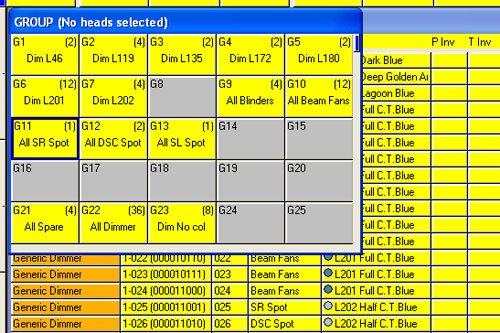
Finally, if group names like Dim L119 don’t inspire you, you can rename them to something like All Blue by hitting SET (bottom right) and choosing the group from the GROUPS window. Type in the name and hit Enter. Next up, creating a workspace by making a custom view. Let’s start by closing all the windows on the MagicQ with SHIFT + CLOSE(top right).
Create a Workspace
The MagicQ has some default views that are a good starting point when you are in a hurry. You can see these by holding CRTL and selecting a programmed view from the top softbuttons such as Pallettes or Output. The empty slots on the right are where we are going to create a custom view to use with this tutorial. We basically set up a view we like, then store it. We want:
- Groups – for fixture selection
- Programmer – to see what’s going on in the programmer.
- Output – a view that let’s us see what’s happening on stage. In reality, you might decide that having a full rig in front of you is enough ;-)
Close all windows with SHIFT + CLOSE. Open the minimised GROUPS window and make sure it is in the top left quarter. You can drag it about but I just keep hitting SIZE until it’s in the right place. Next open the PROGRAMMER [PROG] window and size it until it’s sitting in the top right quarter.
Finally, open the OUTPUT Window and size it until it fills the bottom half of the touchscreen area. Make sure that softbuttons View Plan, View Colour and View Grid are selected. Save this view to a softbutton by pressing RECORD [REC] (bottom right), typing in a name like Custom Prog, holding CTRL and selecting an empty slot at the top of the screen area. If it’s worked you should be able to recall CTRL + Palettes (to see the groups and palettes windows) then toggle back to your custom view in the same way. My view looks like this:

Set up a Grid
Next, we are going to help ourselves to see what’s going on by creating a basic visualisation tool using a MagicQ grid. Grids are useful tools for things like pixel mapping but can also be used to create a virtual plan that we can select and view our fixtures on.
With the Outputs window active (top bar is dark blue) select Set Grid Size (top) and type in 25/15. This sets a grid of 25 squares wide by 15 high in the OUTPUT window to place our fixtures onto. What we are going to do now is to place individual fixtures into our grid so that they represent a rough layout of the stage. It doesn’t need to be completely accurate, just clear.
In the OUTPUT window, select View Head Nos for now. Select the Group All FOH Pars and on the grid, click a position for our Channel 1 somewhere downstage and to the left of centre to represent where this bar of six lives. Hit the Insert Heads H softbutton (top right when the OUTPUT Window is active). This puts channels 1-6 in a nice line just like our bar of six but we have two bars mirror split so we want to represent them as well.
Going back to the GROUPS window, we still have the FOH Pars (Channels 1-6) selected. The top right encoder has the option Selection – Normal, indicating that the group selection is the order in which the group was created, in this case numerical 1- 6 . Clicking in the area next to the encoder, we can select Reversed which give us 6-1. Choosing a starting point for out mirrored bar of PARs on the OUTPUT grid, Insert Heads H adds the reversed selection to the grid and creates out second FOH bar.
With a group selected, toggling the Selection Order button also brings up the Into Centre and Centre Out options that are a shortcut to creating selections when programming. The changes in the selection order are reflected in the top bar of the Groups window which displays the fixture number of the current selection.
Create the other PARS on the grid using the GROUP selection, Normal/Reverse selection and Insert Heads H. Inserting the Source 4s and blinders as a group, they take up consecutive positions on the grid. To make them represent the rig more closely, space them out by moving them into different slots on the grid with MOVE [MVE], click on fixture, click on destination slot.

Full grid Once you have got all your fixtures laid into the grid, choosing View Colours (top) shows a layout of gels like the image above. De-select View Grid (top) to remove all the unused squares and try out your new plan by selecting All Blue from the Group window and toggling the Selected Heads next to the bottom right encoder to 100%. You will notice that the relevant squares on the grid turn blue and wheeling down the encoder, the height of the level “graph” diminishes to represent the lowering of the intensity. Great, now we can see what would be happening on stage.

You will also see in the PROGRAMMER window that data has entered the programmer, ready to be saved to a memory. Hitting CLEAR removes the data from the programmer and the output from the stage. As we are at a good point, let’s save the show again but opening the SETUP window and choosing Save Show. You can either create a new show file by giving it a unique name or simply overwrite the existing show by just pressing Enter at the prompt.
Recap
So far, we have learned:
- To navigate our way around the MagicQ and change settings via the SETUP window.
- To start a clean show and configure an output.
- To enter data via the Command Line and the spreadsheet views.
- To add conventional dimmers and make changes to the patch in the PATCH window.
- To label up fixtures with rig position and colour information and use it to automatically create selection groups.
- To create a custom workspace and name it for instant recall using CTRL + a view softbutton.
- To REMOVE and MOVE data around the MagicQ.
- To create a custom grid and insert fixtures into it, to be used as a visual aid.
- To select fixtures using GROUP and change the selection order using the inbuilt tools.
Next up, we will move onto controlling our dimmers and using the many tools on the MagicQ to create looks, chases and effects to be used in our show. As you are probably busting to record something onto a fader, here’s the quick start version as a sneak preview. Select your group All Blue and bring it to 100% using the encoder. Check that programmer has 4 channels of L119 @ 100% (BTW, the number of fixtures in this group is shown by the (4) on the GROUP slot) then press RECORD [REC]. Immediately after RECORD, type in the name of your look while watching it appear in the Command Line – BLUE WASH then hit the S button above a fader. CLEAR the programmer and you have recorded a memory. Check it out by raising and lowering the fader. See you next time.
Rob Sayer HND PGDip FHEA is a Senior Lecturer in Technical Theatre Production, mentor, and consultant in stage lighting and education. As a professional lighting designer, Rob designed and programmed theatre performances, music festivals and large corporate events for blue chip companies while travelling all over Europe. With a background in theatre, he combines traditional stage lighting knowledge alongside fast moving lighting and video technology in the world of commercial events.
Just had a brief read of the tutorial after getting my email dijest, looks like its going to be extremely useful, since I am running chamsys/magicq (and have the supporting enttech dongle), and will be using it at a gig this weekend, as opposed to a Fat BullFrog
(prints)
Great topic Rob!
I like your selection of colours in the Plan. Can’t wait for the next chapters!
Cheers,
Dimitris.
Hi,
Where do I go to get this program?
Thanks
This is a cool quick start that I am going to use very soon as I already have the program .Will be intouch.
Thanks man! Great post.
Just a question… I didn’t find “Save Show” soft button. Just “Grab Show” button. Wathever, starting again MagicQ allow me to continue with my show. Any comment? I hope being using MagicQ and Enttec Pro next saturday on a small live gig. Thanx again and carry on!
Hi Ben, the reason you couldn’t find Save Show was that when you were in the set up window, the view must have been still set to View DMX I/O left over from the device setup. Hitting the top left softbutton, View Settings brings up different softbuttons including Save Show. A workflow error in the tutorial on my part maybe.
Thanx Rob; Finally, I’ve experienced on the show that this “grab show / save show” problem is not appearing over windows Xp (but your tip is right anyway). I was running MagicQ on Mac while learning the software, but I worked over XP on Boot Camp during the show and all appears as explained on tutorials. Running the show over MagicQ was a terrific experience and I hope to be able to buy a touch LCD soon to enjoy the software even more.
Thanks again!
Wow, thanks a bunch for this tutorial, I have learned so much from that more than I could from reading the manual.
Here goes the next 2 parts and another couple of hours … lol
Thanks again.
Hello! Hope that theese tips will be useful.
But I have one problem
“In SETUP, choose DMX I/O (top) and you will see a spreadsheet showing a DMX universe list. Double click on the Out Type field of DMX universe 1, and choose Open DMX from the list.”
I don’t have OPEN DMX in the list. Do I need to choose Open USB, Magic DMX, USB DMX, Cham USB or what? (i don’t have DMX)
Hi Valdis
Perhaps my mistake – if you want to use the Enttec Open DMX USB, select Open USB.
Rob, thanks for all your time, and it’s a shame it has been a waste of mine. You say ‘Perhaps my mistake’, in reply to Valdis, and ‘Maybe’ to Ben Diaz.
I’m sorry Rob, and I know that you’re trying to help people, but I followed your tutorial to the letter and it is completely misleading and flippant.
I’ve given up on this horrible looking rubbish looking ancient looking software.
I’m sure that I could find better.
If sequencers and midi were this badly explained, nobody at all would be able to grasp it.
I’ve just looked at DMXIS and this looks better already. The Cham website which should really buy the domain ‘Sham’, is shocking and the inroad to their awful looking software is an assault course.
I’m out!
david man
ur so right this magicq sucks ass big time u shud use freestlyer like i do
Hi David
It sounds like you are looking very much for a simple software DMX lighting control – which MagicQ isn’t. In that case, MagicQ sucks for you because it is the free software version of a professional hardware moving light controller used all over the world for live performance.
As a professional moving light programmer, I can say that the MagicQ fulfills the many criteria needed when controlling large and complex lighting rigs and works very much in the same way as the other industry leaders – Grand MA 2, Whole Hog 3 and the ETC Eos.
None of which would win awards for having the prettiest of icons on their touchscreens. As I’ve mentioned before, when Adobe Light Control comes out, then those who want shiny graphics instead of powerful programming tools will head over to that. I’ve also written about potential problems for Cham Sys trying introduce their product to new users via a piece of hardware (the PC) which basically make it less attractive.
I’m sorry that you didn’t get on with the MagicQ but it doesn’t sound like it was designed for your needs in the first place.
Thanks for your comments and keep reading :)
Nice quick start Rob,
I’ve always wanted to do some quick tricks clip with Capture & Chamsys,
But, many tricks require to show the actual interface of the console or at least Maxi wings cause of those combination button press.
really got no idea how to cramp in my screen with visualizer running & yet showing the interface of the console and at the same time explaining it.
Hi Justin
I know what you mean. It’s a choice between cutaways to the visualiser or Picture In Picture which is quite messy. Perhaps another answer is a demo show that includes a cue list that fires media clips of a tutorial or something on a second screen. Then the user could follow along within MagicQ PC.
Hey, Rob, first of all, thanks for the great tutorial. And nice job making those two whining about it look foolish.
My question is: Is it just me, or is magicQ very similar to some of the older Hog software? Is there any relation, or is it just a matter of that they’re both the same sort of high tech intelligent lighting software?
Hi Noah
I think MagicQ did take a lot of it’s early “cues” in terms of hardware and software from the Hog (the hardware side is obvious and I understand comes from a shared family tree in design personnel).
When I first saw the prototype, I described it as being “all of the best bits of the Hog II and an Avolites with a load of added “extras”. These were things like colour pickers, Lee and Rosco colours, good spreadsheet style manipulation, fixture clone, morph + more including multiple ways to use playbacks etc.
Now all these things are expected from a grown up controller but at the time I’d never seen it all in one desk that I found incredibly easy to use. Since then: media and pixel mapping integration, timeline, executors and a ton of other things have been added – again, all things that seem natural for moving light controllers of today.
While I know that the MagicQ did draw heavily from the experience of it’s LD creators, I feel that they brought a few new things to the table that we see on other desks – we just assume that a “bigger” manufacturer got their first.
I’d love to take a look at a timeline of feature development across the industry. Thanks for your comment.
Hey Rob, I’m following along with your tutorial but have hit a brick wall. I’m learning MagicQ for moving lights, but want to get the most out of it and am starting at the beginning. However, in your grouping section when i hit “Auto Groups” all i get is groups of dimmers by name, not colors like your example. All that comes up is All Dimmers, Dimmer FOH Par, Dimmer MID Par, etc. Is there something I am missing? I am running the program in OS X and will be using the PC Wing in a few weeks. My company rented out all of our my Avolites consoles at the same time. Any help you can provide is greatly appreciated.
Hi Brian
In order for Auto Groups to give you groups by colour, you need to have set the Gel field in the Patch, as well as named the fixtures (which is where the desk derives groups such as FOH PAR etc). As long as you’ve set the colour, it should work in my experience. You can re generate Auto Groups at any time, as I recall, but I seem to remember it recreates ALL of them, including ones you’ve already got.
WOW!
This tutorial was outstanding! I am new into the software side of things as I am just lighting local bands here in the States for now. This tutorial has just opened the flood gates on how to navigate magicq, and made what seemed, at first opening of the software, daunting, look very easy and user friendly. I am wanting to connect the simple rig of scrollers I have to already existing house systems at various venues and take control of the combination without having to have one hand on the house board, and one on mine. As well as be able to pre-program shows for the different venues beforehand. For now, this appears to be the way to go. Thoughts?
A million THANK YOUS to you for taking the time to post these tutorials!!! You da man!!!
Hi Jeremy
Sounds ideal. If you are using your own scrollers, address them up to something at the far end the DMX universe, 450+ to reduce your chances of having to readdress them at each venue (most places start with their kit at DMX 001, natch) If you are using a two or more DMX universe output device or node, you can put your own kit onto one universe and free up others for the house kit. If you only dealing with dimmers, then you can have your show and just repatch the dimmers at each venue and perhaps tweak.
If you label up the patch well and get access to either patch list at the gig (or write down the numbers) in a few minutes you can adjust the DMX/Universe numbering of each fixture – if you always have blinders, they’ll still be on the BLINDERS playback because the desk (like others) records fixture numbers in memories and groups, so changing the patch leave the programming intact.
If you have having to use moving heads in each venue then I would set a default number of fixtures, washes, spots etc like 10 of each or something depending on the size of venues. Pick fixtures that you use on your first gig to program with, then investigate using the Fixture Morph facility to try and save you some time when you get to the next venue that has different heads. It might work well, depending on the fixtures in question. Program using all 10, even if you don’t always have them at every gig, and if you go into a venue with more than 10 spots, look at using Fixture Clone to extend to the additional kit without much more programming.
Hope that’s given you a few ideas.
Hi rob is it possible to post a link to the PDF. so that you don’t have to pay to download it
cheers nick
Hi Nick
You shouldn’t have to pay to download the PDF from Scribd as far as I know. It just hosts the PDF and looking at the stats plenty of people have downloaded it, you just need to be logged in (which you can do with your FB login) as far as I understand.
Thanks for the tutorials, they’re great. I’ve been reading them onlinm, however I’m unable to get all 3 of the PDF’s, the links point to the first one only.
Hi,
Hope that my question will still be answered to, despite the older comms on this topic. I’m using QLab at this moment mainly for stills/videos/audio in support of shows in the theatre. Am looking to start using QLab as well for controlling lights and am therefore looking for:
a) software to program light cues etc.
b) preferably including visualizing options
c) during a show prefer to run only QLab on my MacBook therefore think that I should be using stand alone dmx interface that I can load my light setting onto.
d) or can I run QLab + Light software on the same MacBook and send internal Midi Control messages from QLab into the Light software and send light instructions out via usb>DMX? What would that do for performance of my MB?
thx in advance
CH from NL
How do I get from here to turning the lights on actually seeing one turn on This tutorial may be pretty but it doesn’t tell me where to go next to actually puch a slider up and see the light come on that I have hooked up??
Er, Burt. This is not a quick start tutorial as the series clearly states at the start. If you are using the MagicQ in “push up a slider” mode and want to get going in a hurry, this isn’t going to help you. It’s not supposed to. Using Simple mode on the MagicQ PC makes it a “push up a slider” type desk if you aren’t interested in moving lights and the User Manual and Quick References are perfectly adequate.
I’m sure there are plenty of things wrong with this series but people all over the world have used it to get them started on a long road to becoming moving light programmers on the MagicQ. Cham Sys themselves have a video series, so there really is more than one way to learn what you need to without putting the effort into learning the detail of a complex lighting console.
Thanks for your comment. :-)
Thanks for the tutorial, I think this is probably the most versatile Virtual desk that will run my ENTTEC USB PRO, and have decided to use it for most shows.
In answer to (CH from NL) who asked about running QLAB and a virtual desk on the same mac, probably the best solution for you is LX Console http://lx.claudeheintzdesign.com/lxconsole.html
This has macros built in which will send your q list to QLab. I am however nervous about running LX, Sound and AV off one laptop and so will probably run Sound and Video off QLab on my mac, and get a second laptop, probably with Linux to run MagicQ.
Hi Partick. Owners of the ENTTEC USB PRO might like to know that Martin’s MPC free software will now run a single universe via the USB PRO too!! The Martin is similar to the other pro consoles of the Hog/MA/Titan/MQ etc. in style and seems pretty tidy. Be worth looking at although Windows only, although if you are happy with the MagicQ I couldn’t suggest a reason to change over as yet.
hey am using the magicq product software on my mac and am wondering how best can i use for the chase times (if thats right) so that i can have different colors at the different times but under the same patch.